Category Archives: Computers

Fetch Apple iPhone photos to your Linux computer (1)

Let’s imagine you have a visitor which is not very familiar with computers and phones but wants to share their 1 Gigabytes of photos with you on their Apple iPhone.

You probably know that until recently Apple was about incompatible as possible when it comes to software and hardware. For example, if you work in an office and your iPhone battery is almost empty then in the last few decades none of the Android phone chargers would rescue you. In the future Apple will iirc have to adjust and allow USB-C connections.

In this blog post I will focus on LocalSend because I believe it is an elegant solution

for all kind of operating systems and it is not super difficult.

For example, with Linux you can also go for the tools of libimobiledevice project

but this is not only more difficult but it can be very confusing. Because if you use libimobiledevice to mount the iPhone and you think you will quickly copy photos across and then delete a few hundreds photos via the mount point you will be in for a surprise.

libimobiledevice can only copy from the phone and it cannot delete photos from the phone although it will not complain about the latter.

So, without further ado and without further delays let’s check out the wonderful LocalSend application :

  1. Install LocalSend on the phone and on your Linux computer.
  2. Make sure you are on the same WiFi network without client isolation on (this can be the case if you have a Guest WiFi network option).
  3. On your Linux laptop open port 53317 for incoming traffic.
  4. Start the LocalSend app on both phone and your Linux computer.
  5. At the Linux computer click the Receive button
  6. On the phone select which images you’d like to send.
  7. On the Linux computer when the phone has been discovered, click on the nickname of the phone to receive the photos which in my case were downloaded in the ~/Downloads folder.

Alternatives ? KDEConnect or the GNOME counterpart of KDEConnect is also available for Linux, Android, Apple iOS and more.

Part 2 will be about how to convert the photos from HEIC to png or jpg format.
Linux application firewall OpenSnitch

For many years there was no decent application firewall software for Linux.

Since a few years OpenSnitch has been packaged for a few Linux distributions.

Is OpenSnitch for you ?

Maybe not actually, it can be quite annoying having to choose what to allow and what not after a reboot of your computer if you are using more than just a few applications that need network access.

Why would you use it ? If you like to have more control about outgoing network connections from applications on your Linux desktop.

Do I like it ? Yes.

What did I learn with it ? Not much, but I remember wanting to saving html content from a newspaper site in LibreOffice for a friend (Usually I skip photos and want only text when I save an article for myself to read again later) and OpenSnitch came with a pop-up question because LibreOffice tried to connect to the newspaper site to fetch some missing images (or fonts ?).

Correction : Apologies. My memory was wrong. It was LibreOffice itself that asked to download missing remote content.

This information (That LibreOffice wants to fetch things) is not completely unimportant to me because I use VPN or Tor browser or i2p or Tor by other means or just plain Internet, and when I use the latter I prefer to only do this for a limited amount of sites.

More on OpenSnitch, Key Features, OpenSnitch in action (video) and more,

see here : https://github.com/evilsocket/opensnitch


Annoyances fixed (1)

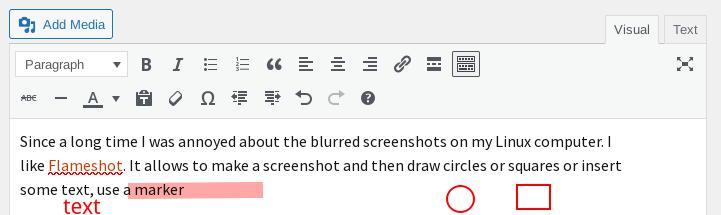
Since a long time I was annoyed about the blurred screenshots on my Linux computer. I like Flameshot. It allows to make a screenshot and then draw circles or squares or insert some text, use a marker. But just like with the PrintScreen button on the keyboard it gives blurred screenshots.

<inserting blurred screenshot made with Flameshot>

Example of a Flameshot screenshot showing a new blog post in progress.

A few days ago I found enlightenment with the good old (old school) scrot command line tool, which gives no such blurring.

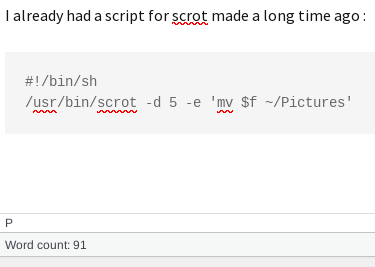
I already had a script for scrot made a long time ago but didn’t use it very often :

#!/bin/sh
/usr/bin/scrot -d 5 -e 'mv $f ~/Pictures'

<inserting screenshot made with scrot>

Example of a screenshot made with scrot tool showing a new blog post in progress

See the shiny difference ?

Drawback is that I need to crop the result manually but since it is only for uploading to Mastodon, which I don’t do very often, this is OK for now.

Years ago I used Shutter to screengrab but the development of that was stalled (Cause sometimes there’s for example GKT3 -> GTK4 or Python2 -> Python3 migrations needed for a programmer and that can take a lot of time. I think this was the case with Shutter too) and I stopped using it. It is back though. Maybe I’ll try that again too.


Part 2 – self-host – A video and audio calls alternative with XMPP/Jabber

In the previous blog post (posted 6 January 2025) I’ve talked about the easiest way of having video- and audio-calls without self-hosting. In this post let’s look at one way to self-host an XMPP server for audio and video calls.

Warning : self-hosting services is not for the faint of heart. If you’ve never done this before, I’d suggest to first do some generic reading on self-hosting or maybe ask here or here.

The perhaps easiest way to self-host an XMPP server that can do video- and audio-calls is to use Snikket.

What is needed for this from you as the admin that will self-host ?

It’s been a while since I tested self-hosting Snikket but I remember that it was a matter of installing Snikket on a server, then log in to the web interface for the admin user, and then create invites for the users you want to have on-board.

After the user receives an invite they will be asked to install the Snikket app on their Android phone (The Snikket app is a soft-fork of the Conversations app. Note that -afair- installing the Snikket app is not a must. If you know your way around you can stick with the Conversations app) and continue to start using their Snikket user account on your server. And then starting an audio- or video call should be the same as in the previous blog post (posted 6 January 2025).


I’d also like to share some information for people with more experience with self-hosting. This could be difficult but perhaps not impossible 😉

Yunohost (link to their app catalog) is software made by a group of volunteers (Mainly in France it appears) that makes self-hosting easier. After a fresh installation you would be ready to install “apps” from the Yunohost apps catalog.

Some users have asked for the feature that the XMPP software that comes with Yunohost (Metronome) can also do video- and audio-calls. In this Github issue (from May 2020) some users claim that they got it working by changing some settings.

Note, if you scroll down to the last comment you can probably see that someone commented that Metronome has become an app instead of coming with a default Yunohost installation.


Happy chatting 🙂


A video and audio calls alternative with XMPP/Jabber

Maybe you are using video or audio calls with Signal, WhatsApp or something else which is based on a centralized server and usually from the US of A.

And maybe you are interested in some more digital sovereignty or just curious for alternatives.

XMPP does exist since a long time (1999) and was previously known as Jabber.

Maybe you’ve never heard of it but I believe XMPP is still relatively popular in Germany.

With the current Geo-political tensions in the world it might be interesting for some people to be more in the drivers seat then before when it comes to digital dependencies and maybe also slowly move towards using more open source software.

I’d like to split blog posts into :

  1. Using XMPP with Conversations app or Monal app.
  2. Self-hosting, looking at Snikket and briefly at Yunohost.

Let’s start with the by far easiest, nummer 1.

For Android users, go to the Conversation IM site and click on Buy now on GooglePlay.

Yes, even though the Conversations app is open source, the developer Daniel Gultsch has chosen to go for paid support for the project (And that serves him well since years). I think the app is quite cheap.

For F-Droid users the app is free of charge. The overview page is here (Note : recommended to install it via F-Droid app).

After Conversations app is installed, open it and sign up for a free account at conversations.im which is the default choice it will auto-suggest after you started typing your preferred username. So you won’t have to type that in.

For Apple iOS users, install Monal IM app, open it and sign up for a free account at conversations.im which is the default choice it will auto-suggest after you started typing your preferred username. So you won’t have to type that in.


When this is done you would first start a text chat conversation with the person you want to chat with. Now comes a slightly tricky part : If your contact is on a different XMPP server then it is possible that video or audio calls will not work. The XMPP server needs to support that feature. So let’s assume your contact also has a free account on conversations.im.

Start the text conversation and say “hello!” to your contact, and ask your contact to reply to your message. After you’ve exchanged some words you should see a green lock icon besides the exchanged chat messages.

After this start a video or audio call.

Nice feature : during the call you can minimize the video window with Conversations on Android and then for example look up something on your phone that you needed during the call. Haven’t tested whether Monal can do that as well.

Read more ?

On Conversations

On OMEMO (whether any other XMPP app does support OMEMO or not)


A little Linux “commandlinefu” fun to share – for geeks & nerds

Let’s imagine that you wanted to make Proton Drive work in Linux because the people from Proton only appears to provide Proton Drive apps for MacOS, iOS, Windows and Android. And you found this blog post Sync Proton Drive on Linux with Rclone and you went ahead without reading all that carefully first and created a new folder

~/ProtonDrive

Then after reading some more (and you see that you need to first configure rclone), you realize you were pretty tired already and wanted to do other things, including this wonderful thing called sleep.

And you think “Let’s remove that new folder” so I will not be distracted by that tomorrow when I’m busy with other computer things.

You type in :

rm ~/ProtonDrive

And you get an error because it is a directory and the rm command needs more powers from you to be able to remove a directory.

Now instead of getting annoyed and wanting to remove all that you had typed in, you can simply add the needed “minus rf” to what you already typed, so it will look like this :

rm ~/ProtonDrive -rf

You see ? Linux can often be very flexible.

And how do I know this ? I liked to experiment and do crazy things in the past, e.g. testing whether little Linux tools would use -h or –help and whether –hel would also work and for some tools it turned out it really DID. Now that I’m a bit older I don’t do that anymore (jk).

I mentioned commandlinefu in the title, here’s a site only about real commandlinefu :

https://www.commandlinefu.com/commands/browse